
QUEST LOG · April 16, 2019· UPDATED June 2, 2026
Lenovo-LEGION-Y520 windows10+Ubuntu18.04 Dual Boot
# Prep before installing
- First, carve out a partition in Windows for the new system
This PC -> right-click -> Manage -> Disk Management
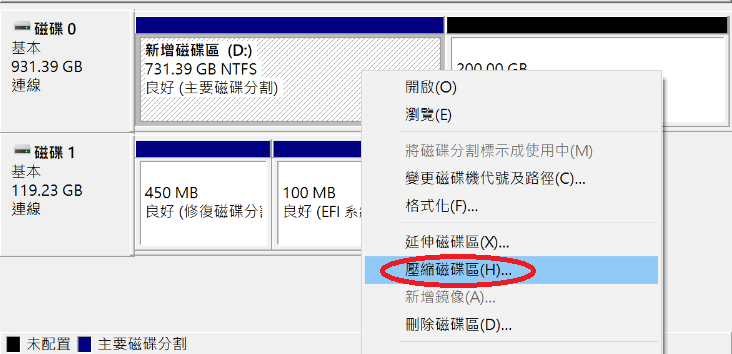
Burn Ubuntu onto a bootable USB. I used rufus and ubuntu
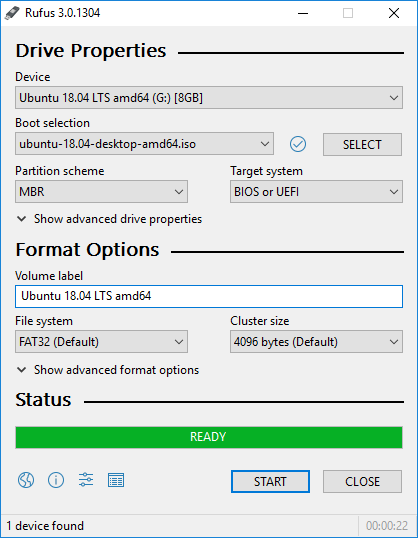
rufus screenshot Go into the BIOS and adjust settings (boot by poking the small hole on the left side of the machine with something pointy, or press F2 at boot)
[configuration]->Set Sata Controller Mode to AHCI, otherwise the Ubuntu installer won't see the SSD
[Security]->Set Secure Boot to disabled
[Boot]->Boot Mode[UEFI], USB BOOT[Enabled]; make sure these options are set
Press F10 to save settings
- Enter the boot menu and pick the inserted USB to boot from (select it via the pinhole)
# Installation
Now you can start the install.
It's just a normal OS installation; you can follow this installation guide
I picked the option to install alongside Windows Boot Manager, which saved a lot of setup time.
# Fixing small issues after installing
- After installing, you'll find you can boot into Ubuntu but not Windows. See this post
That's because when Windows 10 was installed, the BIOS Sata Controller Mode wasn't AHCI, so it won't boot
(1) Boot into ubuntu first, then restart and enter the BIOS
(2) Set [configuration]->Sata Controller Mode to Intel RST Premium, press F10 to save
(3) Get into Windows through grub, then hold Shift while restarting: Troubleshoot -> Advanced options -> Startup Settings -> Restart
(4) On restart you'll pass through the grub screen; choose System setup, change Sata Controller Mode in the BIOS back to AHCI, press F10 to save, and restart again
(5) After going through grub into windows10 , restart once more and dual boot will work
- Clock out of sync. See this post
There's also a way to switch windows to UTC, but I'd rather not touch Windows settings if I can help it
sudo apt-get install ntpdate #安裝ntpdate
sudo ntpdate time.windows.com #設定時間伺服器
sudo hwclock --localtime --systohc #設定本機時間
Now you can enjoy the joy of dual boot. Double the joy (lol)
# Programming newbie here, corrections very welcome
Feel free to reach out with any questions, and let me know what I could improve
Apps I ship
Free on iOS and Android.
AniSeekr
Track anime across MAL, AniList, Bangumi and three more, then visit the real places from the scenes.
Solid(ar)ity
A privacy-first identity wallet: zero-knowledge proofs and signed cards swapped face to face, no central server.